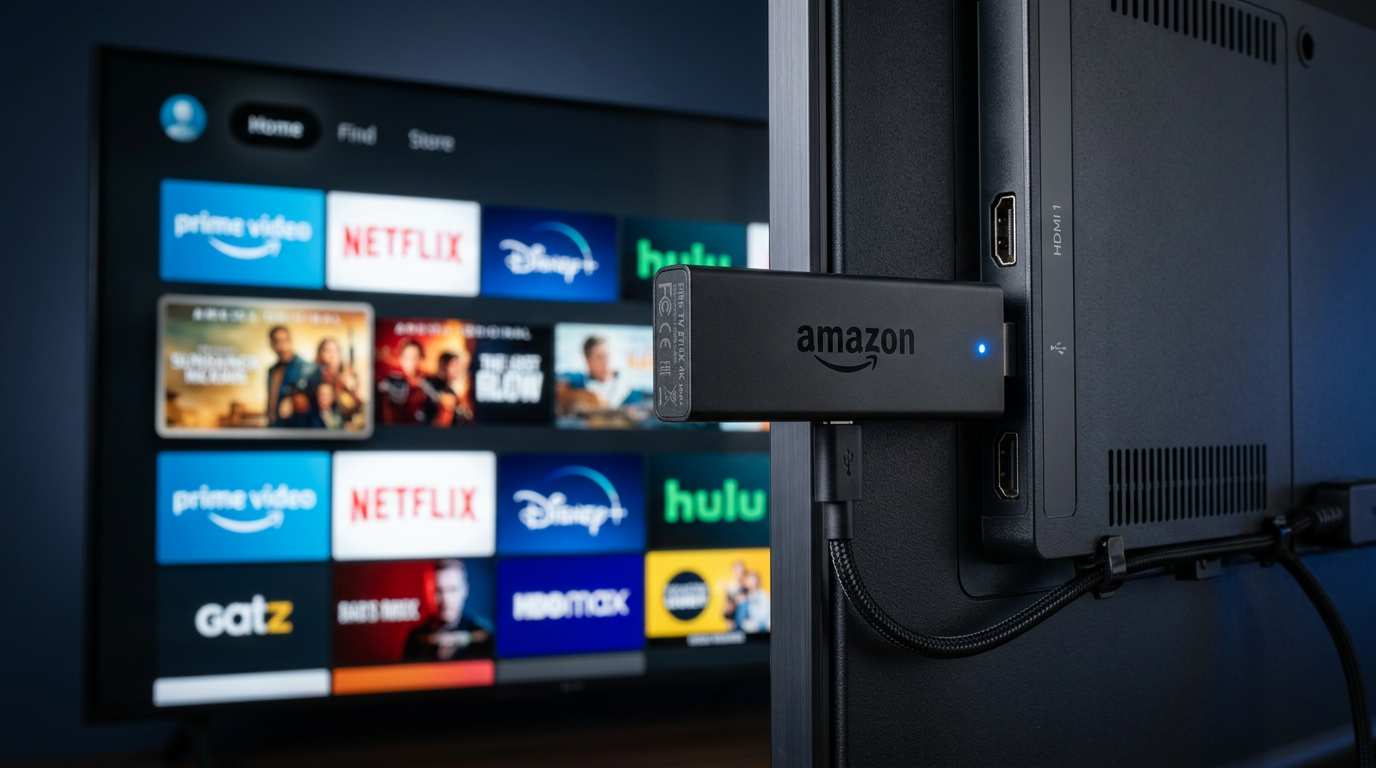
Quick facts
- Amazon Fire TV Stick 4K Max is the recommended device at approximately $70 CAD
- Sideloading via Downloader app is the safest install path — no jailbreaking required
- IPTV Smarters Pro is the recommended app; supports Xtream Codes login
- Setup takes 15-30 minutes from unboxing to first channel
On this page
- What You’ll Need Before Starting
- Step 1: Set Up Your Fire TV Stick (First Time Only)
- Step 2: Enable Apps from Unknown Sources
- Step 3: Install the Downloader App
- Step 4: Install Your IPTV App
- Step 5: Enter Your IPTV Credentials
- Step 6: Configure EPG (Program Guide)
- Step 7: Optimize for 4K Streaming
- Common Problems and Fixes
- Recommended Fire TV Accessories
- Fire TV Setup FAQ
- Next Steps
Last updated: August 27, 2026 by Antoine Lambert
Amazon Fire TV Stick 4K Max is the most popular IPTV device in Canada — it’s cheap ($70 at Best Buy or Amazon.ca), it’s fast enough for stable 4K, and it works with every major IPTV app. This guide covers everything from unboxing to your first channel, based on the exact steps I use when I onboard a new customer.
What You’ll Need Before Starting
- Amazon Fire TV Stick 4K or 4K Max (either works, Max is faster)
- Your IPTV service credentials (username, password, portal URL, or M3U link)
- Wi-Fi network with at least 25 Mbps download (50+ Mbps for 4K)
- An Amazon account (free to create)
- About 15 minutes
Step 1: Set Up Your Fire TV Stick (First Time Only)
- Plug the Fire TV Stick into an HDMI port on your TV. Connect the USB power cable to a wall outlet (do NOT use the TV’s USB port — it’s underpowered).
- Switch the TV input to the HDMI port. You’ll see the Fire TV logo boot up.
- Pair your remote by holding the Home button for 10 seconds until it connects.
- Connect to your Wi-Fi network.
- Sign in with your Amazon account (or create one).
- Skip the promotional app installs — you don’t need them.
Step 2: Enable Apps from Unknown Sources
Most IPTV apps aren’t in the Amazon Appstore. You’ll install them via a browser sideload. First, you need to enable this:
- Home → Settings → My Fire TV → Developer Options.
- Turn ON “Install unknown apps” (or “Apps from Unknown Sources,” depending on your Fire TV version).
- You may need to also enable ADB Debugging on some versions.
Note: Newer Fire TV versions hide Developer Options. To unlock: go to Settings → My Fire TV → About → click on “Fire TV Stick” (or your device name) seven times rapidly. Developer Options will appear.
Step 3: Install the Downloader App
Downloader is the tool you’ll use to install IPTV apps from URLs.
- Home → Search icon (magnifying glass, top left).
- Search for “Downloader” and select the app by AFTVnews.
- Click Get / Download.
- Open Downloader once installed.
- Allow the app to access your files when it asks.
Step 4: Install Your IPTV App
The most reliable IPTV apps for Fire TV in 2026:
- IPTV Smarters Pro — my recommended default; works with M3U + Xtream Codes
- TiviMate — best EPG interface; requires TiviMate Companion for full features
- Smart IPTV — clean, simple, works on Samsung and LG TVs as well
- GSE Smart IPTV — solid alternative if others fail
For most users, IPTV Smarters Pro is the right choice. Here’s how to install it:
- Open Downloader.
- In the URL bar, type:
https://iptvsmarterspro.com/download(or use the direct APK URL your IPTV provider gives you). - Press Go. The APK will download.
- When download finishes, click Install.
- Delete the APK file after installation to save space.
Step 5: Enter Your IPTV Credentials
Open IPTV Smarters Pro. You’ll see two options:
Option A: Xtream Codes (Recommended)
Most Canadian IPTV services including IPTV Prime Canada use Xtream Codes. Enter:
- Name: Any label you want (e.g., “Home”)
- Username: Provided by your service via WhatsApp
- Password: Provided by your service
- Portal URL: Also provided by service
Click Add User. The app connects, downloads channel list, EPG loads automatically.
Option B: M3U URL
If your service uses M3U instead:
- Name: Any label
- M3U URL: Paste the URL exactly as provided
Step 6: Configure EPG (Program Guide)
Most Xtream Codes services load the EPG automatically. If yours doesn’t:
- Menu → Settings → EPG Settings.
- Add EPG URL provided by your service.
- Click Update EPG.
Step 7: Optimize for 4K Streaming
- Fire TV Settings → Display & Sounds → Display → Video Resolution → set to 4K UHD.
- In IPTV Smarters: Settings → Player Selection → set to “Native” for best 4K performance.
- Hardware Decoder: ON.
Common Problems and Fixes
Buffering every few seconds
- Check your Wi-Fi speed at the Fire TV location (test with Speedtest app). Need 25+ Mbps for HD, 50+ for 4K.
- Move Fire TV closer to router or use Ethernet adapter (~$15).
- Switch to a different IPTV app to see if the issue is app-specific.
- Contact your IPTV provider — sometimes it’s their server, not your setup.
Channels won’t load
- Restart the Fire TV (Home → Settings → My Fire TV → Restart).
- Log out and back into your IPTV app.
- Verify credentials are correct (case sensitive).
- Check if your subscription is still active.
No sound / audio issues
- Settings → Display & Sounds → Audio → set Digital Audio Output to PCM if using a soundbar without HDMI.
- Change audio track in IPTV app menu.
EPG is blank or wrong
- Menu → EPG Settings → Update EPG.
- Confirm EPG URL is correct.
- Some services have a delay of a few hours — check back later.
App keeps crashing
- Clear app cache (Settings → Applications → Manage Installed Applications → IPTV Smarters → Clear Cache).
- Uninstall and reinstall the app.
- Try a different IPTV app (TiviMate, GSE Smart IPTV).
Recommended Fire TV Accessories
- Ethernet adapter — $15 CAD. Kills Wi-Fi buffering permanently.
- USB power extension — $10 CAD. Lets you hide the Fire TV behind the TV.
- Fire TV Cube upgrade — if you want faster boot times and Alexa voice control, $150 CAD.
Fire TV Setup FAQ
Do I need to jailbreak my Fire TV?
No. “Jailbreaking” a Fire TV is a marketing term used by scammy sellers on Facebook Marketplace. All you need is Downloader and Developer Mode — both are legitimate Amazon features.
Is a Fire TV Stick powerful enough for 4K IPTV?
Yes for HDR/HEVC content. The 4K Max is faster and handles more streams. Non-Max Fire TV Stick 4K works fine for 90% of use cases.
Can I install IPTV apps from the Amazon Appstore instead?
Some are there (like some free ad-supported IPTV apps), but the good ones (Smarters, TiviMate) come from sideload. Downloader method is the safe path.
Will my Fire TV Stick get banned for using IPTV?
Amazon does not monitor what apps you sideload. Fire TV Sticks aren’t banned for IPTV usage. Some scam sellers claim this to sell “unlocked” Fire Sticks for 3x the price — ignore them.
My Fire TV Stick is slow. Is it worth upgrading?
If you have the 2nd gen or older Fire TV Stick (non-4K), upgrade to the 4K Max. The performance jump is huge. The 4K Max costs $70 CAD and is 40% faster.
Next Steps
Once you’re set up on Fire TV, you might want to add IPTV to other devices in your home:
- How to set up IPTV on Android TV Box
- How to set up IPTV on Samsung / LG Smart TV
- Best IPTV service in Canada 2026
Stuck on a specific step? Message me and I’ll walk you through it.
